Add Mail Account settings for AOL™ or AIM™
The mail settings outlined here are specifically for AOL or AIM mail accounts. If you are setting up an AIM account, please change all references of 'aol.com' to 'aim.com'
-
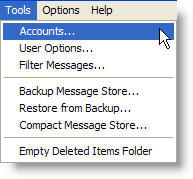
Click the "Tool" menu item on the main menu and select "Accounts" from the drop-down list.
-
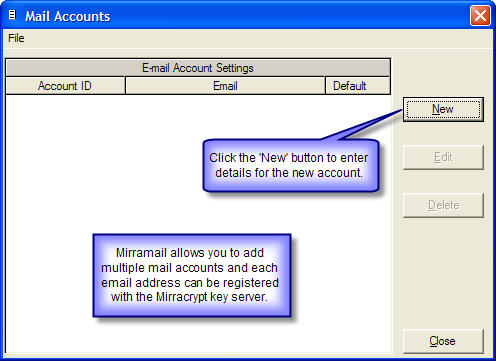
Click the "New" button to enter details for the new mail account.
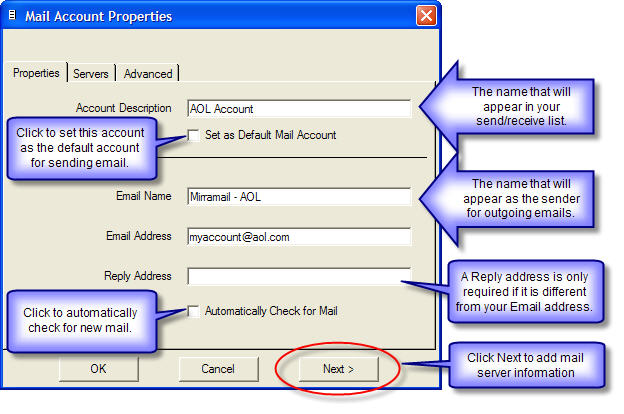
- Enter the required information and click "Next" to add your mail server information.
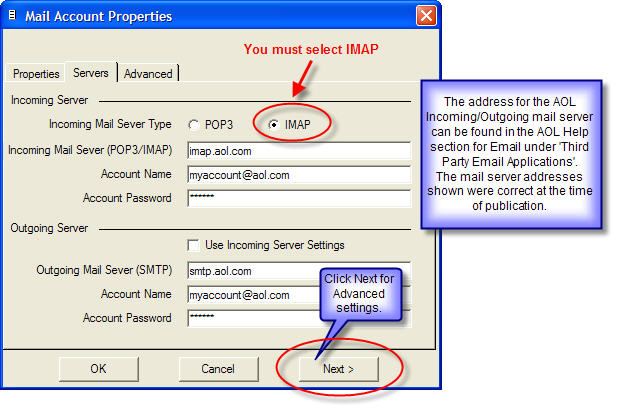
- Enter the Mail Server information required and click "Next" to enter the advanced mail account settings required by AOL. This information is outlined in the next step and can be found on the AOL website by going to the AOL Help section, selecting help for Email and then selecting the link for "Third Party Email Applications". If you do not provide a password for your account, you will be prompted for a password each time you send or receive mail.
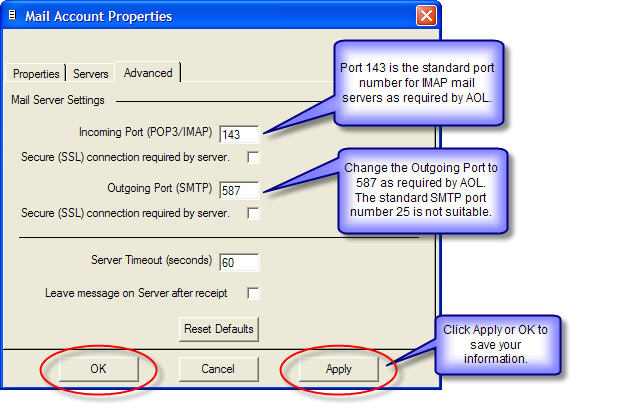
- To finalise the settings for your AOL or AIM account you must change the Outgoing Port (SMTP) to 587 rather than the standard SMTP Port 25. The Incoming Port should have change automatically when you selected IMAP on the previous (Servers) tab, but it should be 143, the standard IMAP incoming port.
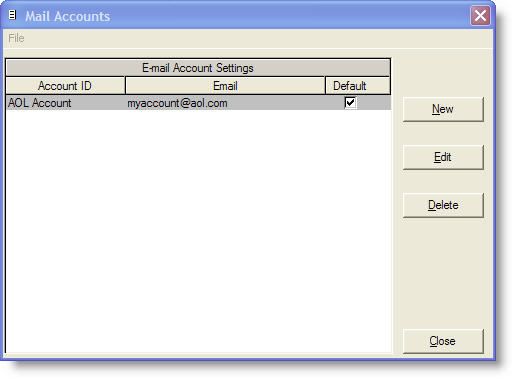
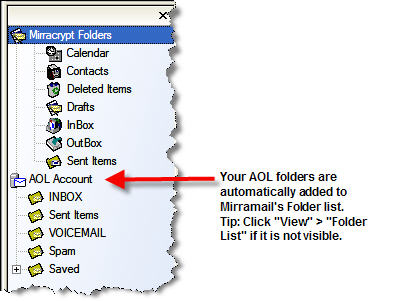
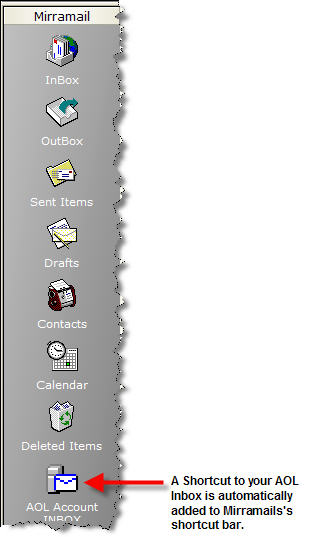
- Your account settings have now been saved. Click "Close" to return to the main program, click "New" to add another mail account or click "Edit" to modify the selected account. As you will note in the screenshots that follow, Mirramail has automatically added your AOL or AIM folders to Mirramail's Folder List and a shortcut to your AOL Inbox on the shortcut bar.