Add Mail Account settings for Yahoo™ Mail
There are two types of Yahoo mail accounts. The older type account allows POP access to your mail as described below. The newer account requires a subscription to the Yahoo! Mail Plus service. Click here for instructions to set up Mirramail access if you subscribe to the Yahoo! Mail Plus service.
-
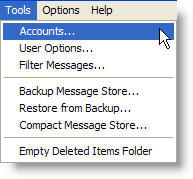
Click the "Tool" menu item on the main menu and select "Accounts" from the drop-down list.
-
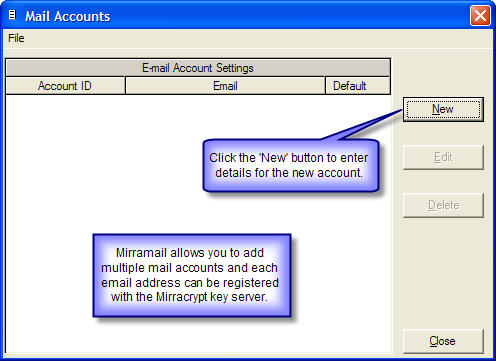
Click the "New" button to enter details for the new mail account.
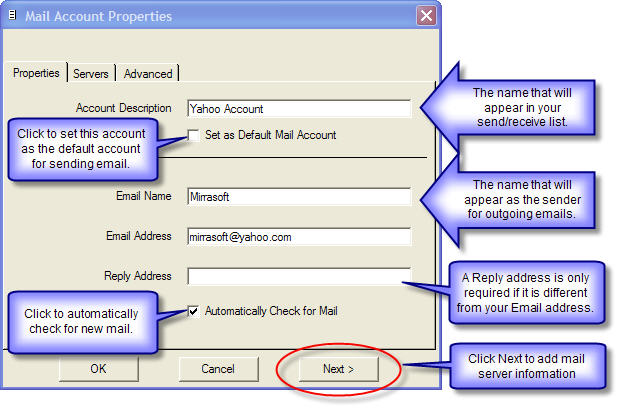
- Enter the required information and click "Next" to add your mail server information.
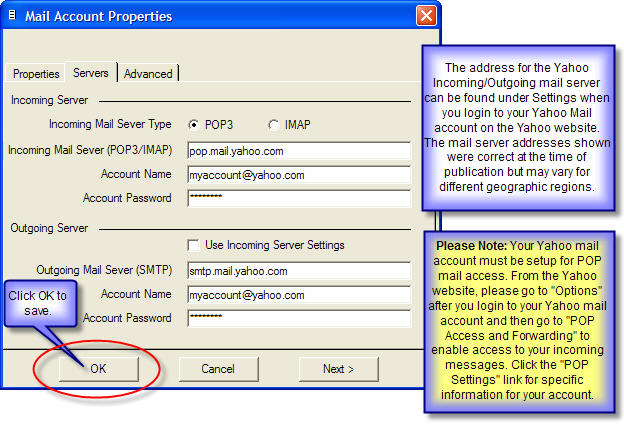
- Enter the Mail Server information required and click "OK" to save your mail account settings. This information is outlined in the next step and can be found on the Yahoo mail website after you login to your mail account by clicking the "Options" link and selecting "POP Access and Forwarding". If you do not provide a password for your account, you will be prompted for a password each time you send or receive mail.
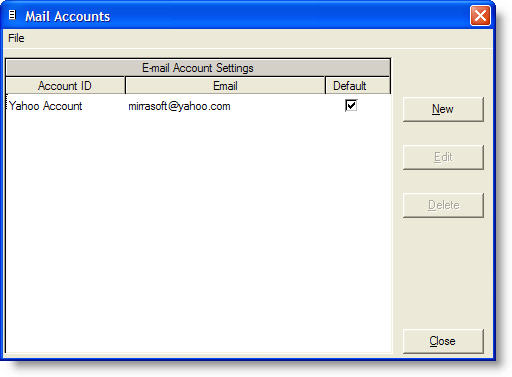
- Your account settings have now been saved. Click "Close" to return to the main program, click "New" to add another mail account or click "Edit" to modify the selected account.