Save a Password to Decrypt an incoming Email
It is not essential to save the Passwords you use to decrypt an incoming message, it is just more convenient, especially if you receive regular password encrypted messages from the same sender. If you do not have a password saved for a specific sender, when you receive a Password Secured Email from that sender, you will be prompted to provide a password and will have the option of saving the password for future use. Alternatively, you can save a password for individual senders as follows:
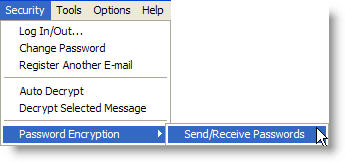
- Click the "Security" menu item on the main menu bar and select "Password Encryption" > "Send/Receive Passwords".
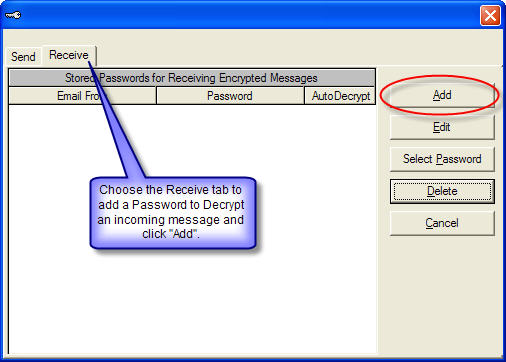
- To create and save a Password to decrypt an incoming message, select the "Receive" tab and click "Add".
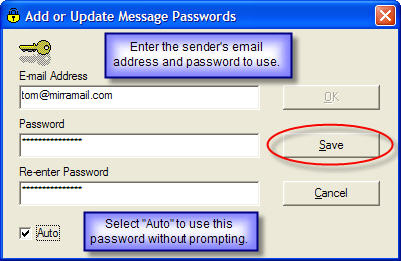
- Enter the sender's email address and password applicable. Click "Save" to add the password to your Mail Passwords.
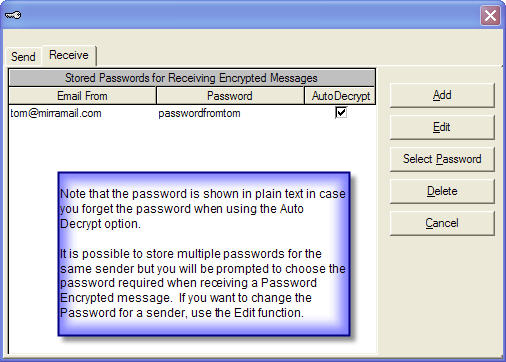
- The Password you have saved will be added to the list of
Incoming passwords.
Note: The password is shown in plain text, in case you forget the password when using the Auto Decrypt option over a period of time.
It is possible to store multiple passwords for the same recipient but you will be prompted to choose the password required when receiving a Password Encrypted message. If you want to change the Password for a sender, use the Edit function.
- You are now ready to automatically decrypt messages from the sender when they have been sent using Mirramail's password encryption option.