Send an encrypted Email with Mirrasoft Key Encryption
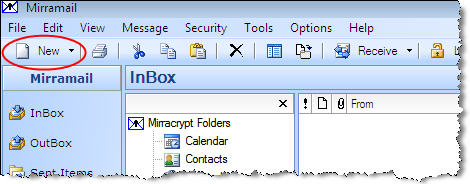
- Click the New button to show the Compose new message window.
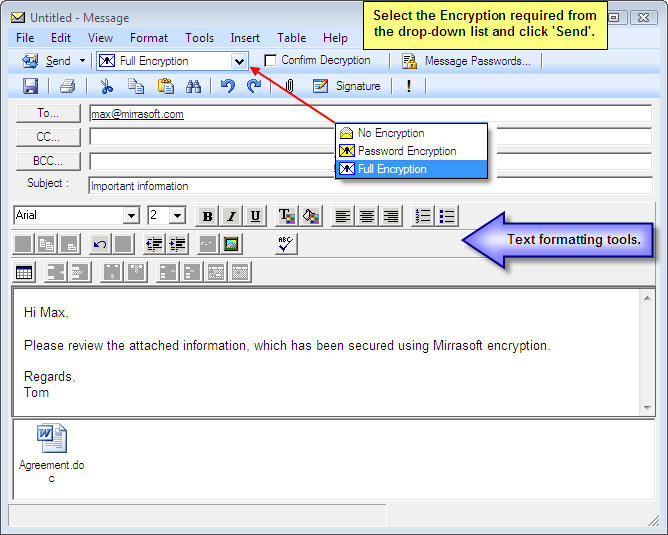
- Select "Full Encryption" from the drop-down list. Compose the message and add any formatting, attachments or images required. When you have finished, click the "Send" button to automatically encrypt and send the message using a unique key for the recipient that is retrieved from the Mirrasoft key server.
Receive and Decrypt an Email encrypted with Mirrasoft Key Encryption
The most convenient way to decrypt a message is to use the Mirramail program to receive the message with "Auto Decrypt" enabled. You can enable or disable the "Auto Decrypt" option by clicking the "Security" menu item and selecting "Auto Decrypt" from the drop-down list.
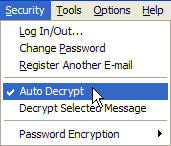
For the purpose of this topic, we will disable the "Auto Decrypt" option and decrypt the message once it has been received.
- Receive the message with Mirramail or refer to the information below if you have already received the message with another email program.
If you have already received an encrypted Mirramail message with Outlook, Outlook Express or another email program, click the "Switch To" icon on the main toolbar and select the appropriate program. When the messages from the other program have loaded, select the encrypted message and click the "Decrypt" icon on the main toolbar to decrypt the message. The decrypted message will be stored in your other email program as well as in the Mirramail message store. 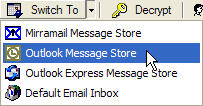
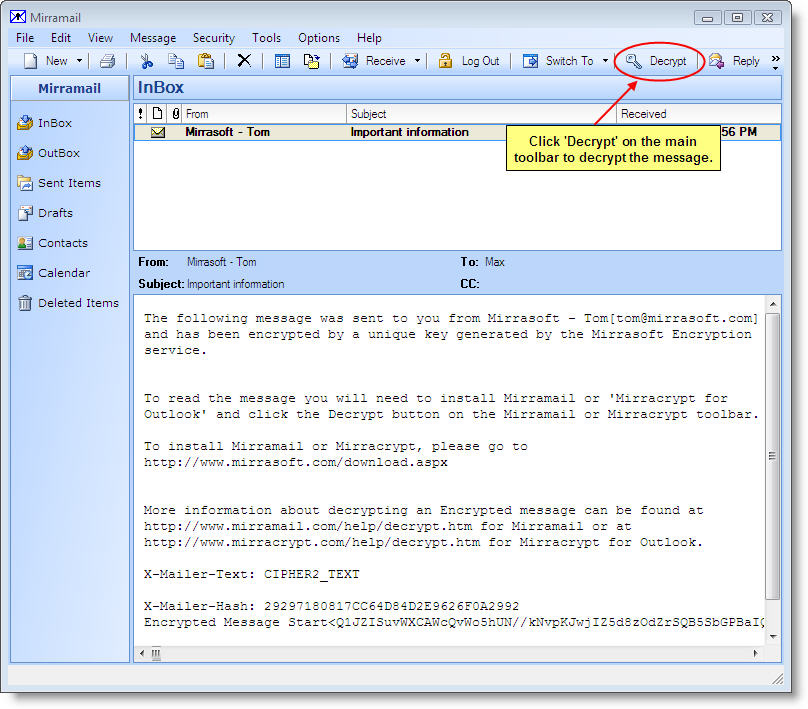
- The message appears in the InBox list. Select the message to view it in the preview area. As you will see below, the message is encrypted and contains text to explain to the recipient that the message is encrypted and the email address of the sender. Using the Mirramail program, decrypting the message is as simple as clicking the "Decrypt" button.
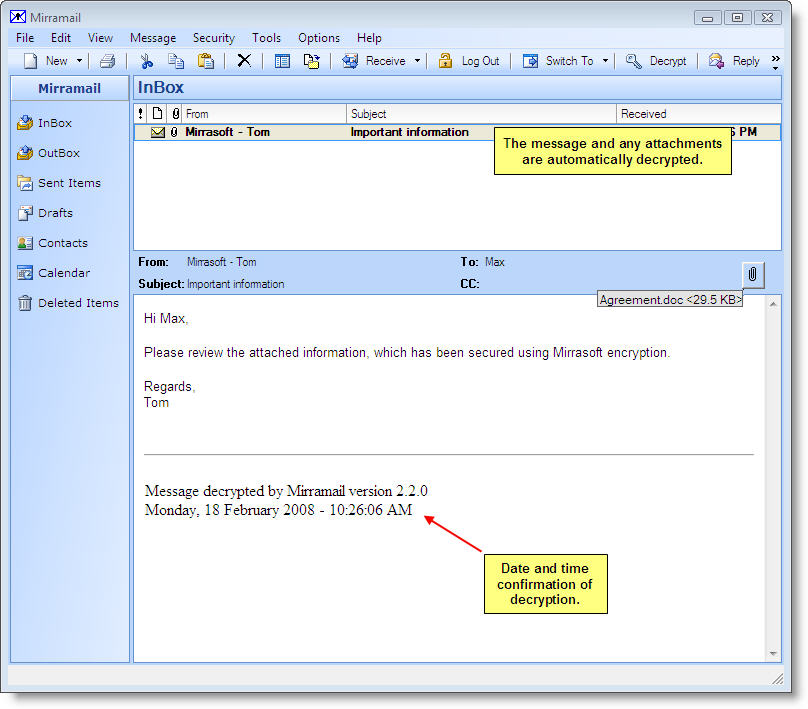
- After clicking the "Decrypt" button, the message, including any attachments and formatting, is decrypted and can be viewed in the preview area.