Activating Mirramail - Register as a new Client...
After installing the Mirramail you will have a choice of registering as:
This topic explains the registration process for "Registering a New Client".
Note: The only personal information needed for registration is your email address, which is used to create or allocate the encryption keys required. Please refer to our Privacy Policy for more information.
- Select either "Trial version - I want to try Mirramail before purchasing" or "I have already purchased Mirramail and have a Software Key. If you select the latter option, you will need to enter your Serial Number and Software Key to proceed.
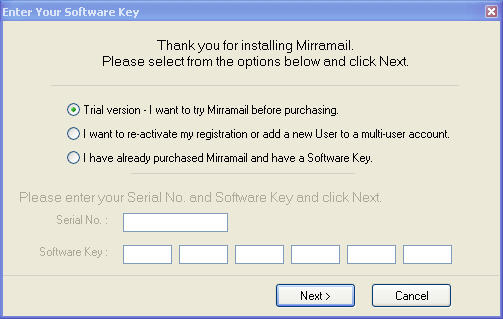
- If you are activating Mirramail as a trial version or your Software Key is for a single user, you will skip this step. If your Software Key is for a multi-user account or you are re-registering your user account you will see the next window. Please choose the relevant option and click the "Continue >>" button.
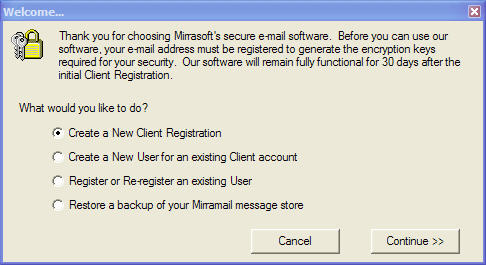
- Enter the required information in the next screen that appears. The only personal information needed for registration is your email address, which is used to create or allocate the encryption keys required. Please refer to our Privacy Policy for more information.
- The number of Users you enter can be amended (increased or decreased) later if you decide to purchase Mirramail. Please select the number of users that you believe will help you evaluate Mirramail effectively. Please note that a single user can use Mirramail with multiple email accounts if they reside on the same computer and use the same Mirracrypt message store.
- The (optional) User name is helpful to the Administrator of your Mirramail account. It is just a friendly name and not required to complete your registration.
- Your Email address is required to allocate the Encryption keys to enable you to receive and decrypt messages sent by other Mirramail users. This should be your primary email address - you can add multiple email addresses to your user account after registration.
- The Administrator password is required, but is not related to your email security. It is only used to administer your Mirramail account, such as adding/removing users to your Mirramail account. User accounts are transferable within your Mirramail account.
- The User password is required, but is not related to your email security. It is only used to re-register your user account if you need to re-install Mirramail on another computer and you do not have a backup of your Mirracrypt message store.

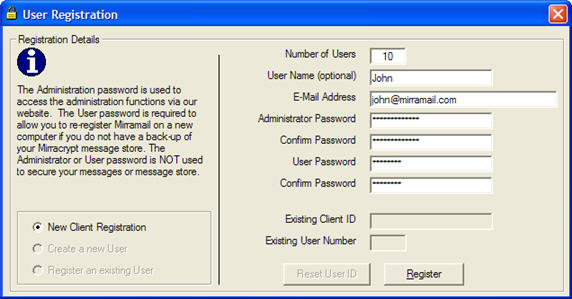
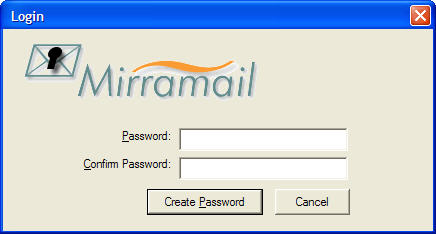
- Enter and confirm your Mirramail password.
The password you choose here is IMPORTANT. This password is used to secure your local message store and without it you will not be able to access your messages or send/receive email (no one else can either). The password you choose is not stored ANYWHERE and cannot be recovered by the support staff at Mirramail. Only a hashed value is stored to validate your password, but the hashed result itself is useless for decrypting your message store and gaining access to your messages. For added security, the message store itself is not encrypted but every part of each message (the From, To, Subject, Body & Attachments) is encrypted separately using a key as unique as the password you choose. You can change your password at a later time but DON'T FORGET YOUR PASSWORD - IT CANNOT BE RECOVERED. This is a good thing for your security and privacy, which is why you are using Mirramail.

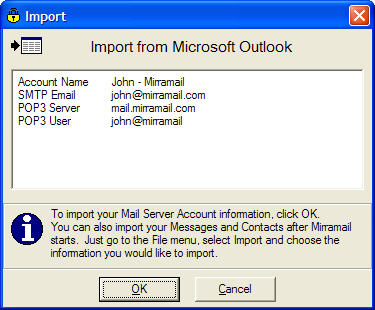
- After entering your password, you will have the option to import your Mail accounts from Outlook or Outlook Express. Alternatively, you can import them later or setup your mail accounts by clicking Tools > Accounts on the main menu of the Mirramail program.
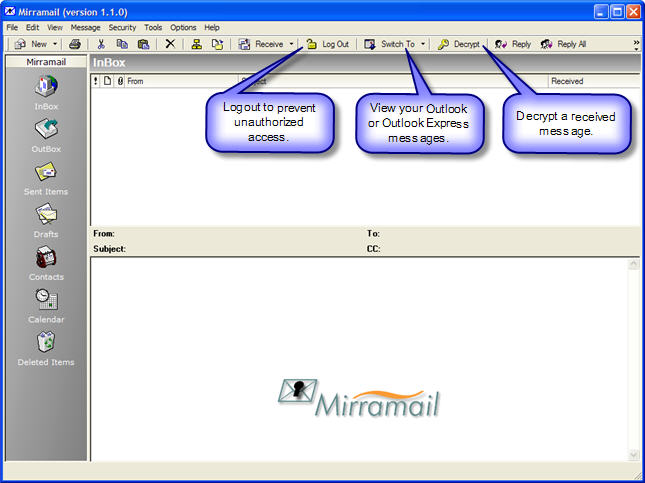
- You are now ready to start using Mirramail. Most of the features are intuitive and should allow you to start using Mirramail straight away. But most of all we hope you will enjoy the comfort that Mirramail will give you by ensuring you email is secure and private.
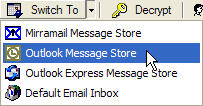
If you have already received an encrypted Mirramail message with Outlook, Outlook Express or another email program, click the "Switch To" icon on the main toolbar and select the appropriate program. When the messages from the other program have loaded, select the encrypted message and click the "Decrypt" icon on the main toolbar to decrypt the message. The decrypted message will be stored in your other email program as well as in the Mirracrypt message store.