Activate Mirramail by Restoring a backup of your Mirramail message store...
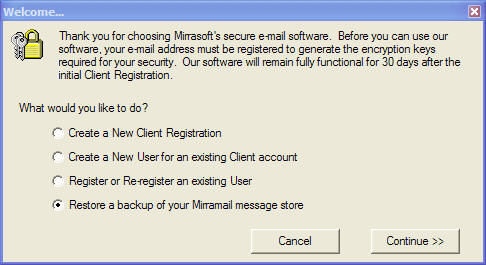
After installing the Mirramail you will have a choice of registering as:
This topic explains the registration process for "Restoring a backup of your Mirramail message store".
- Choose "Restore a backup of you Mirramail message store" and click the "Continue >>" button.
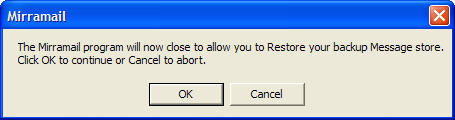
- Click OK to continue.
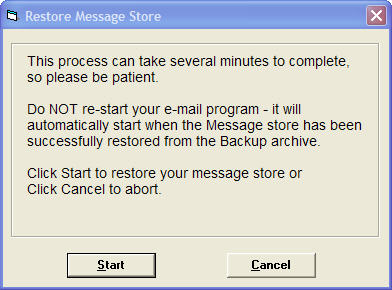
- Read the information in the next screen that appears and click the Start button to restore you backup.
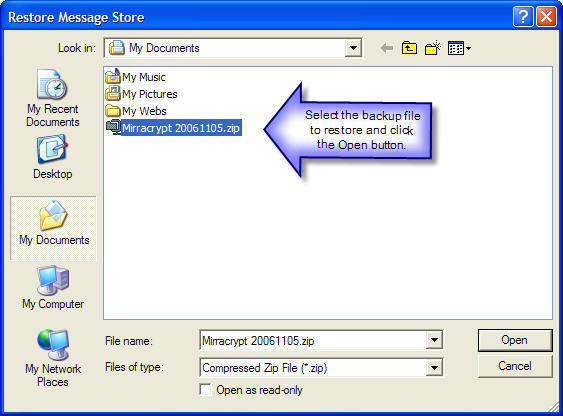
- Select the backup file to restore, which should be named Mirracrypt YYYYMMDD.zip where YYYYMMDD equals the Year, Month and Day that the backup was created.
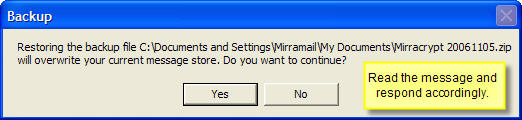
- Read the warning message and click Yes if you wish to proceed.
- After your backup has been restored you will receive a confirmation message.
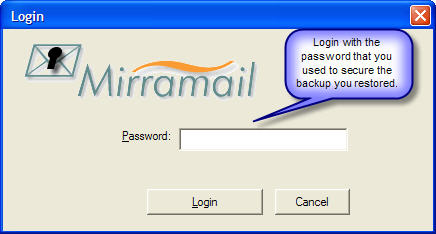
- Please enter your password, but remember that it is the password that you used with the message store that you have restored. If you have changed your password since making the backup copy of the restored message store you will need to use your old password.
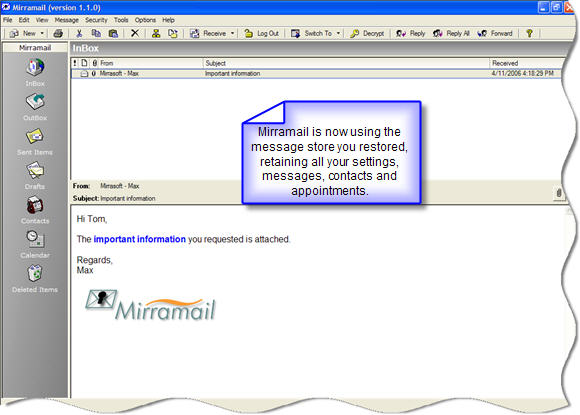
- After accepting a valid password, Mirramail will now start using you backup message store, which will contain all your messages, contacts, appointments and settings as they were when you created you backup.